

-
Direct To Garment (DTG) 0
-
Getting Started 19
-
Texjet® Garment Printers 58
-
Textile Applications 30
-
RIP Software 27
-
PreTreater Pro 15
-
Troubleshooting 20
-
-
Direct To Film (DTF) 1
Texjet NG Series Printers: Long Inactivity


Long inactivity maintenance
STEP 1
Clean the capping stations, wiper blade, and the head guards from ink residue.
Tip: Check the Shut down maintenance guide for instructions.
STEP 2
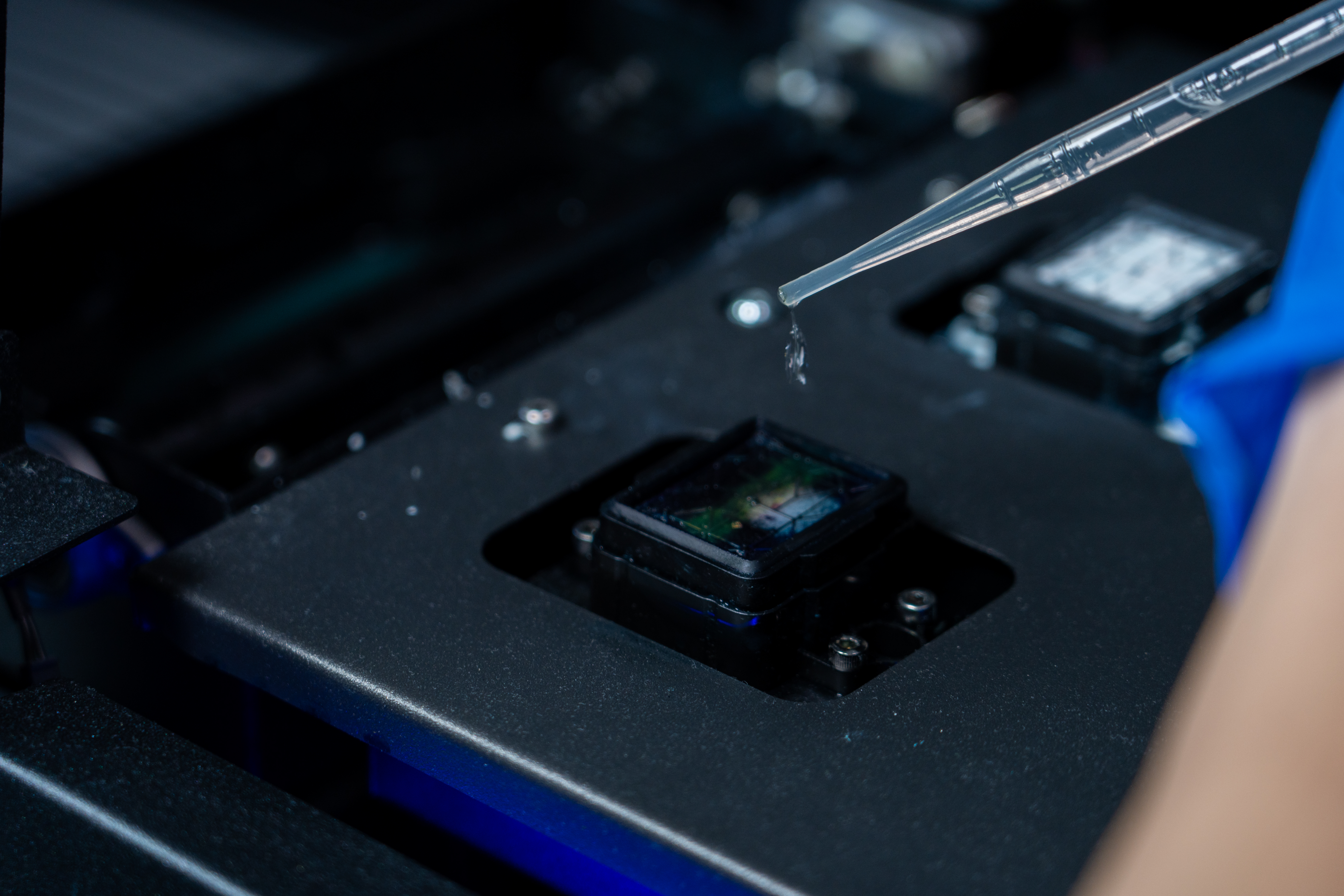 Fill the cap stations with cleaner solution, so the heads pool in liquid and their nozzles stay hydrated. Make sure the carriage is electronically locked afterwards.
STEP 3
Fill the White ink tanks at least at 60-70% capacity, so no error occurs during the recirculation.
STEP 4
Make sure the printer stays on power (plugged in) at all times, so the re-circulation of the white ink and the agitation of the tanks and subtanks is enabled.
Note: If the area is subject to frequent power surges, a UPS installation is strongly recommended.
STEP 5
The workspace temperature should be monitored, and it should not exceed 28 Celsius degrees (82F) at all times.
Tip: Use an A/C unit with the Smart Mode on, so it keeps stable the room temperature and saves on power at the same time.
Recovery
STEP 1
Fill the Wiper Tank with distilled water.
STEP 2
Wake up the NG printer per usual. Perform a Strong cleaning cycle followed by a Weak one. Check the nozzle test afterwards.
If there are still a few nozzle missing per channel you can proceed with a second Weak cleaning cycle. If the nozzle test is not properly restored, contact our team for guidelines.
Caution: The idleness should not exceed the 1-month period. If you want to leave your printer inactive longer, please consult with our support team for proper guidance.


