

-
Direct To Garment (DTG) 0
-
Getting Started 19
-
Texjet® Garment Printers 58
-
Textile Applications 30
-
RIP Software 27
-
PreTreater Pro 15
-
Troubleshooting 20
-
-
Direct To Film (DTF) 1
TexJet shortee2: How to reset the ink pad via Digital Factory Apparel Polyprint Edition v10

TexJet shortee2 is equipped with an ink pad, where the printhead “spits” ink during printing, in order to keep the nozzles clean and always deliver vivid prints with sharp details. After a certain number of prints, you will get a yellow notification on the Printhead Control Panel that reads “Ink Pad Reset”.
Caution: If you overlook this message, the next time it appears, it will be in red. If this happens, please contact our support team to help you out: https://polyprintdtg.com/support/
In order to remove the notification, follow the steps below:
STEP 1
Make sure that you are using a USB connection.
Note: If you have opted for a LAN data cable, make sure that you are equipped, also, with a USB cable for cases like this one.
STEP 2
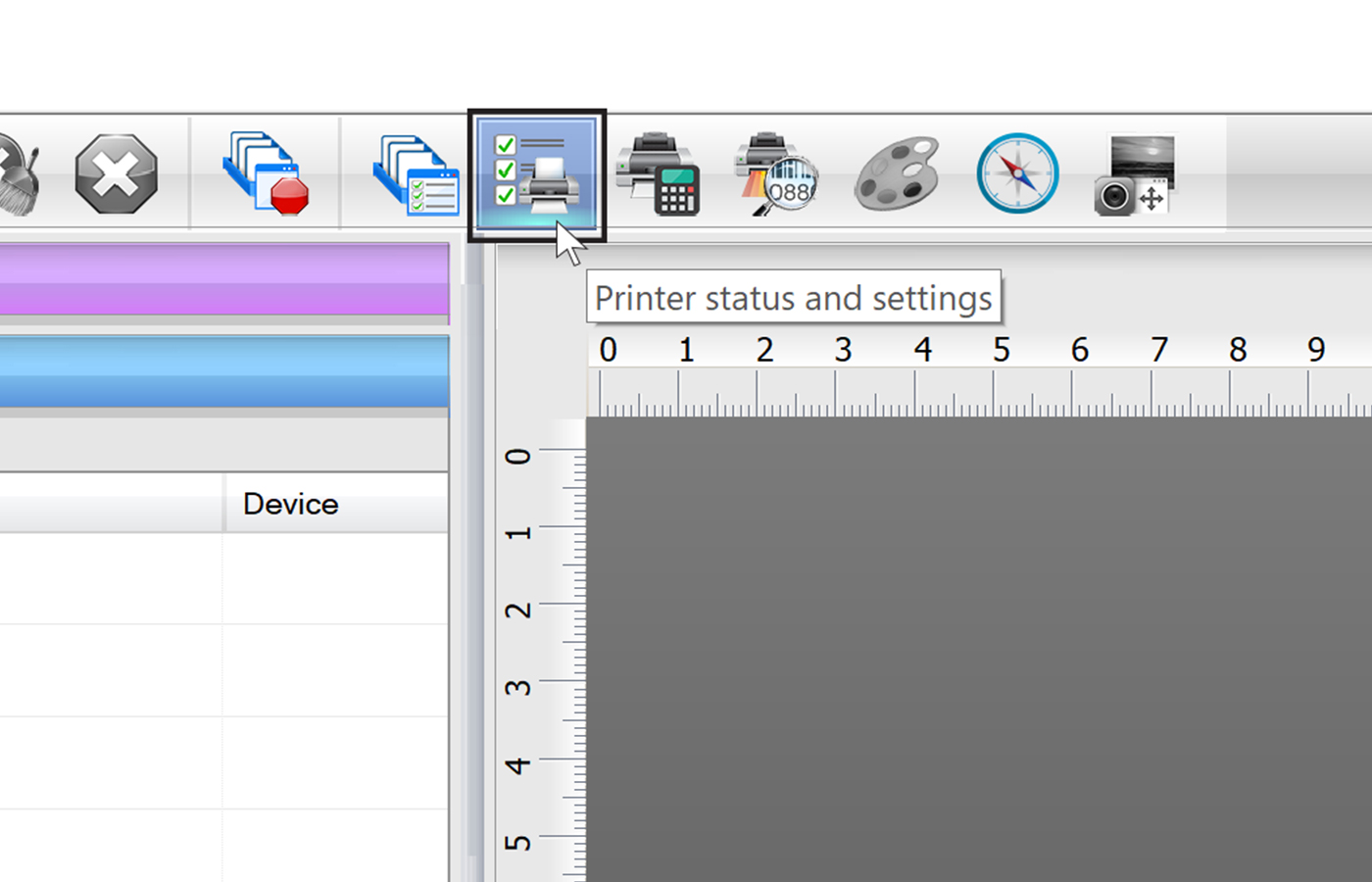 On the Digital Factory Apparel Polyprint Edition software, choose from the icon toolbar Printer Status and Settings.
STEP 3
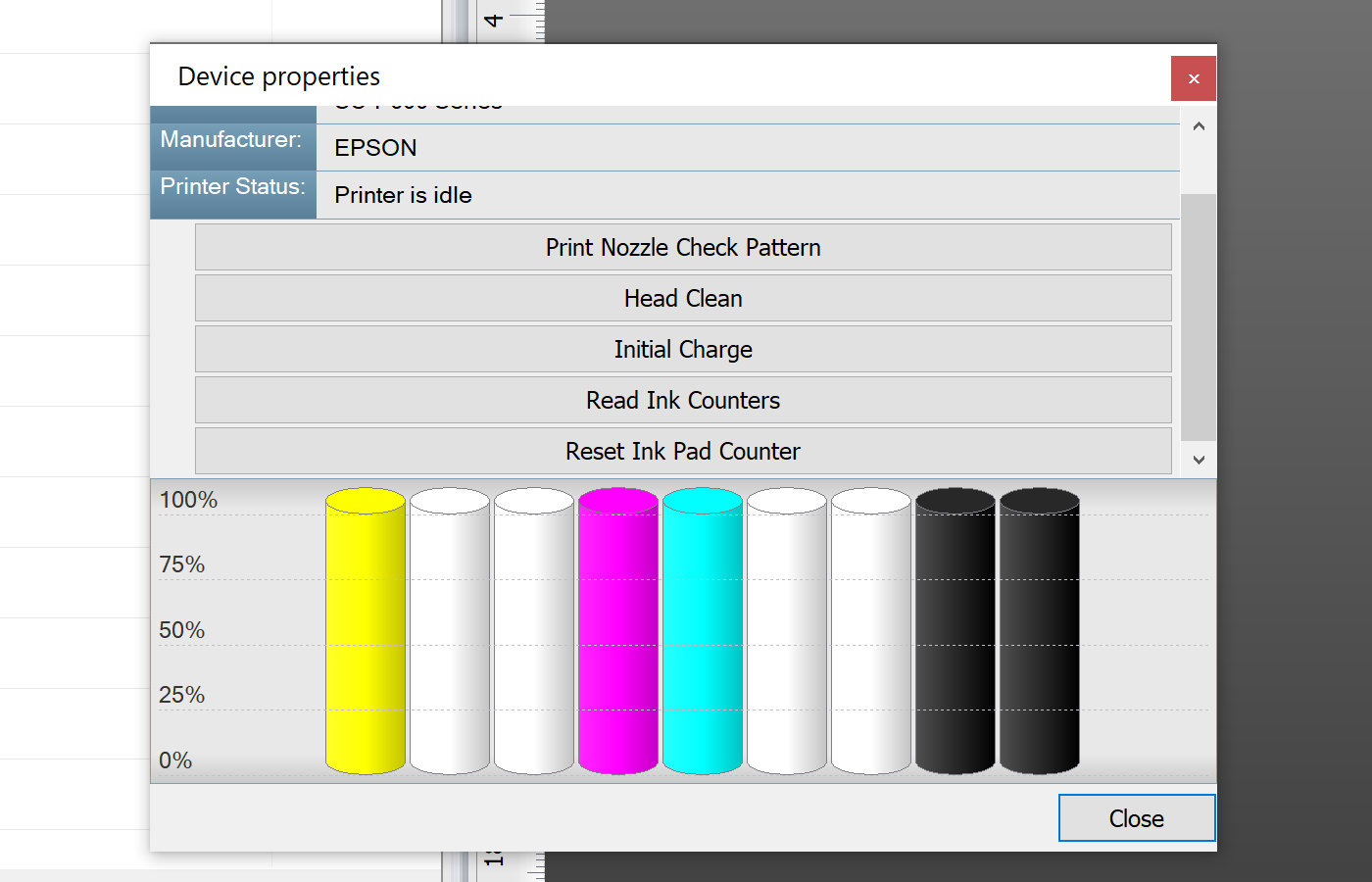 At the window that pops-up select Read Ink Counters, and then press OK.
STEP 4
At the same window select Reset Ink Pad Counter, and then press OK.
STEP 5
Reboot your printer to remove the message.


