

-
Direct To Garment (DTG) 0
-
Getting Started 19
-
Texjet® Garment Printers 58
-
Textile Applications 30
-
RIP Software 27
-
PreTreater Pro 15
-
Troubleshooting 20
-
-
Direct To Film (DTF) 1
11xx Service Call: What is warning you about & how to resolve it

When the printhead carriage moves, there are two key compartments that support and help with its movement. Those are the carriage shaft and the scale CR that should be maintained properly every month, in order for the printhead carriage to have a smooth movement.
If it shows an error message that starts with 11 and has whatever last two digits on your Printhead Control Panel, means that the printhead struggled to move due to obstacles in its way. Those obstacles could be dried ink mist and fine fibers from the clothing. These errors are more possible to appear during the printer boot-up, as the carriage requires more force to move, but also can be viewed during the printing procedure.
To remove the error message, follow the steps below:
STEP 1
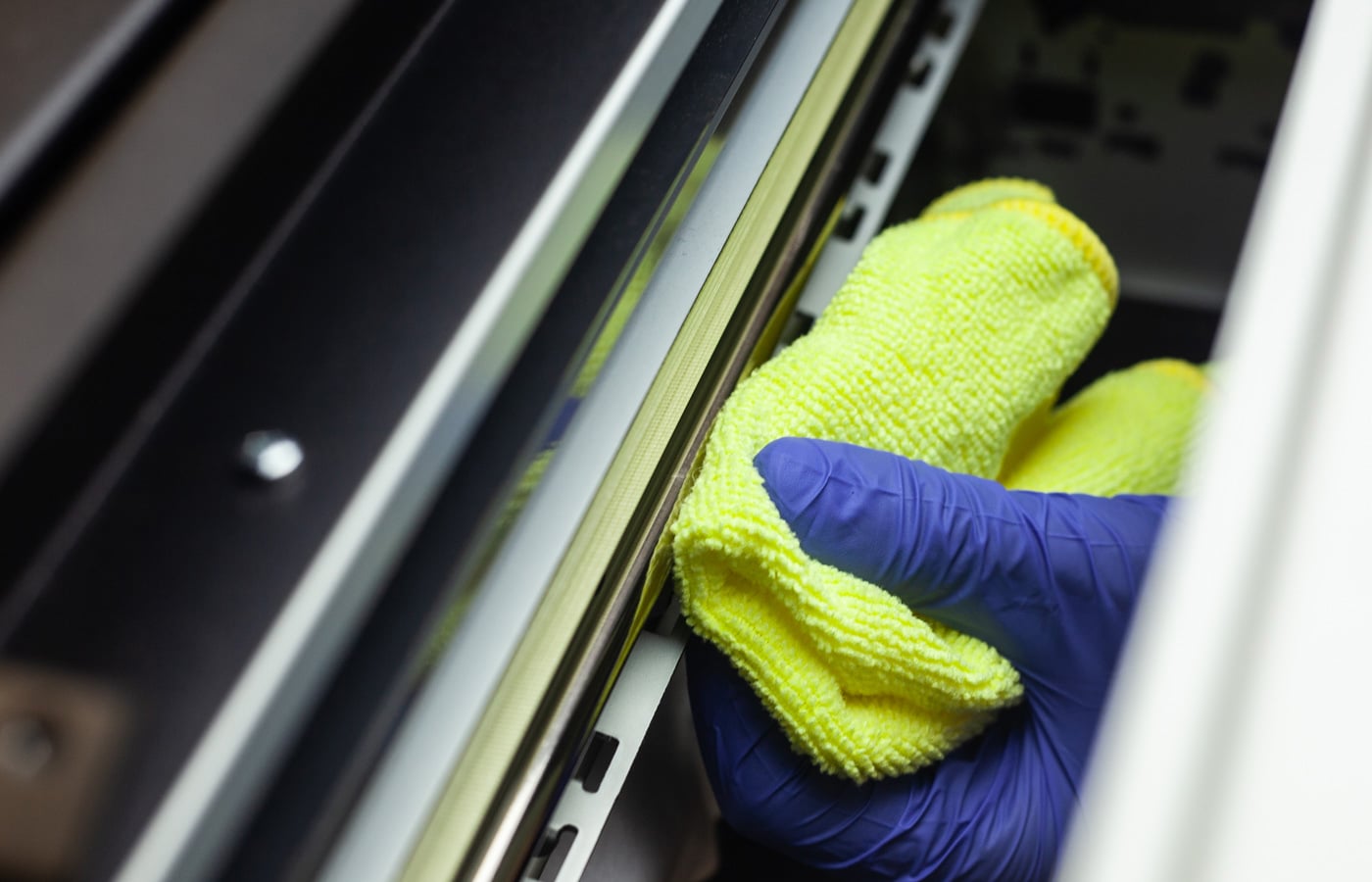 Proceed on cleaning the carriage shaft and the scale CR. This is a maintenance process that you should follow every month.
Scale CR. Clean the transparent encoder strip with some Isopropyl Alcohol on a paper piece. Make sure you gently move the carriage along the strip, in order to clean all the dirt that has been gathered behind it.
Carriage shaft. Pass a clean piece of cloth over the carriage shaft to clean it from the ink mist and fibers that have been gathered. Again, move the printhead carriage gently back and forth a few times, to clean even behind the capping station, as this is where all the dirt is pushed during printing.
TexJet echo2: Monthly maintenance guide
Note: Do not put grease in the carriage shaft if the TexJet echo2 is less than one year old. If the printer is more than one year old, when cleaned, use the WD40 lubrication oil spray.
Caution: In whichever case the error appears, the printhead will be unlocked. This is a good time to perform the cleaning of the carriage shaft and the scale CR, without entering the maintenance mode. After the cleaning, reboot the printer to lock the printhead in position.
If you are not going to proceed to the cleaning, then lock the printhead manually with the gear at the left side of the printer. Reboot the printer and shut it down again in order for the printhead to be locked electronically.
STEP 2
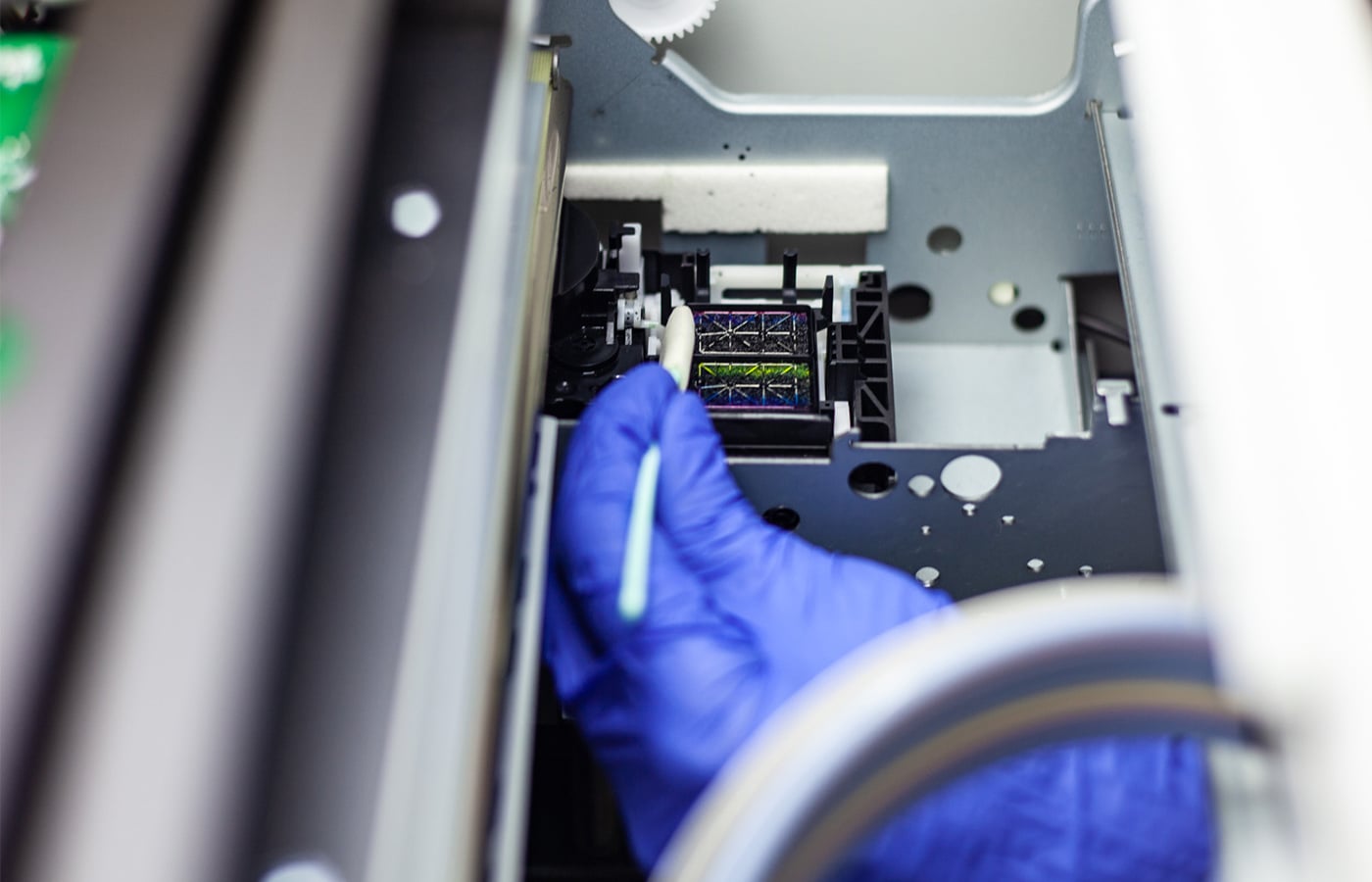 Clean the wiper and the rubber surroundings of the capping station using cleaner solution and a cleaning swab. If those parts have dried ink, then the carriage movement could be compromised, as the up and down motion would not be performed correctly.
TexJet echo2: Daily & weekend maintenance guide
STEP 3
If the problem insists, please seek out professional help. Contact our support team at: Customer Support
Warning: Don’t try anything that will put your machine at risk, as you may cause further damage and invalidate your printer warranty.


