

-
Direct To Garment (DTG) 0
-
Getting Started 19
-
Texjet® Garment Printers 58
-
Textile Applications 30
-
RIP Software 27
-
PreTreater Pro 15
-
Troubleshooting 20
-
-
Direct To Film (DTF) 1
How to print pantone charts via the Digital Factory Apparel Polyprint Edition v10


Sometimes, you may stable upon a tricky color hue that with the ICC profile that your printer is equipped with it doesn’t come out as it is supposed to. This is where the Pantone charts come in handy, as you can choose the specific color you want to print and substitute it on your design. The Pantone Matching System was created so graphic designers can be able to match perfectly specific colors. It shows what solid colors are supposed to look like. The coded number and catalogued way they are collated is the global standard by which inkjet printers work to.
The reason why you can benefit from the pantone color charts in your dtg business is because they use mixing percentages of specific colors to create a color. This way, when you have to print a design that the colors must be on point (for example a company logo) you can insert specific values of the CMYK inks and acquire the exact result you are seeing on your screen.
Digital Factory Apparel Polyprint Edition gives the user the ease of printing a variety of color charts through his software, so he doesn’t need to purchase any pantone book or search for them on the internet. To do so, please follow the steps below:
How to print pantone color charts
STEP 1
Depending on the color queue you want to print (Black shirts, Color shirts or White shirts) double-click at it.
STEP 2
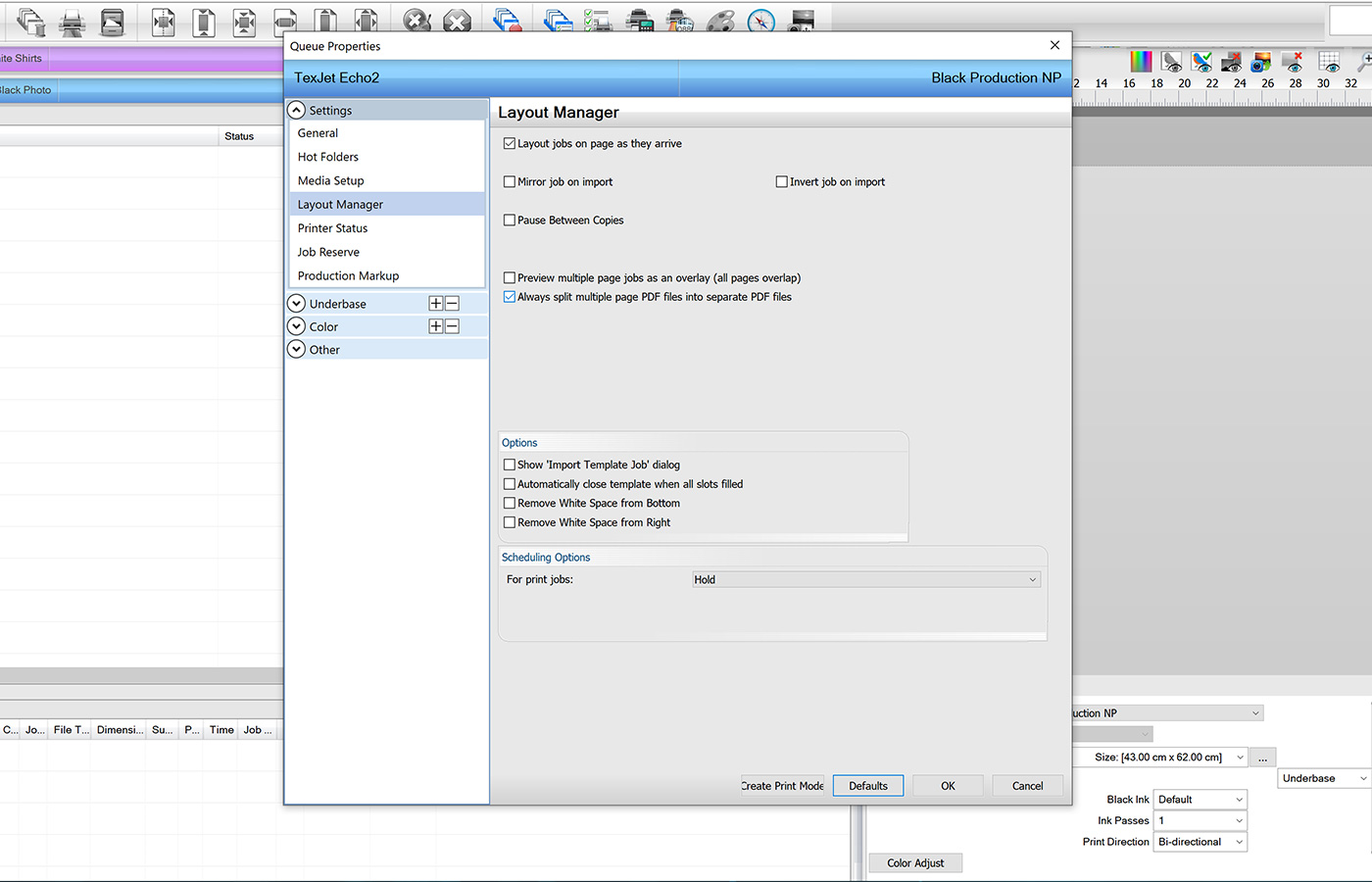 At the Queue Properties window that pops-up, select the Layout Manager from the drop down menu. Check that the box that reads “Always split multiple page PDF files into separate PDF files” is enabled. Click OK.
STEP 3
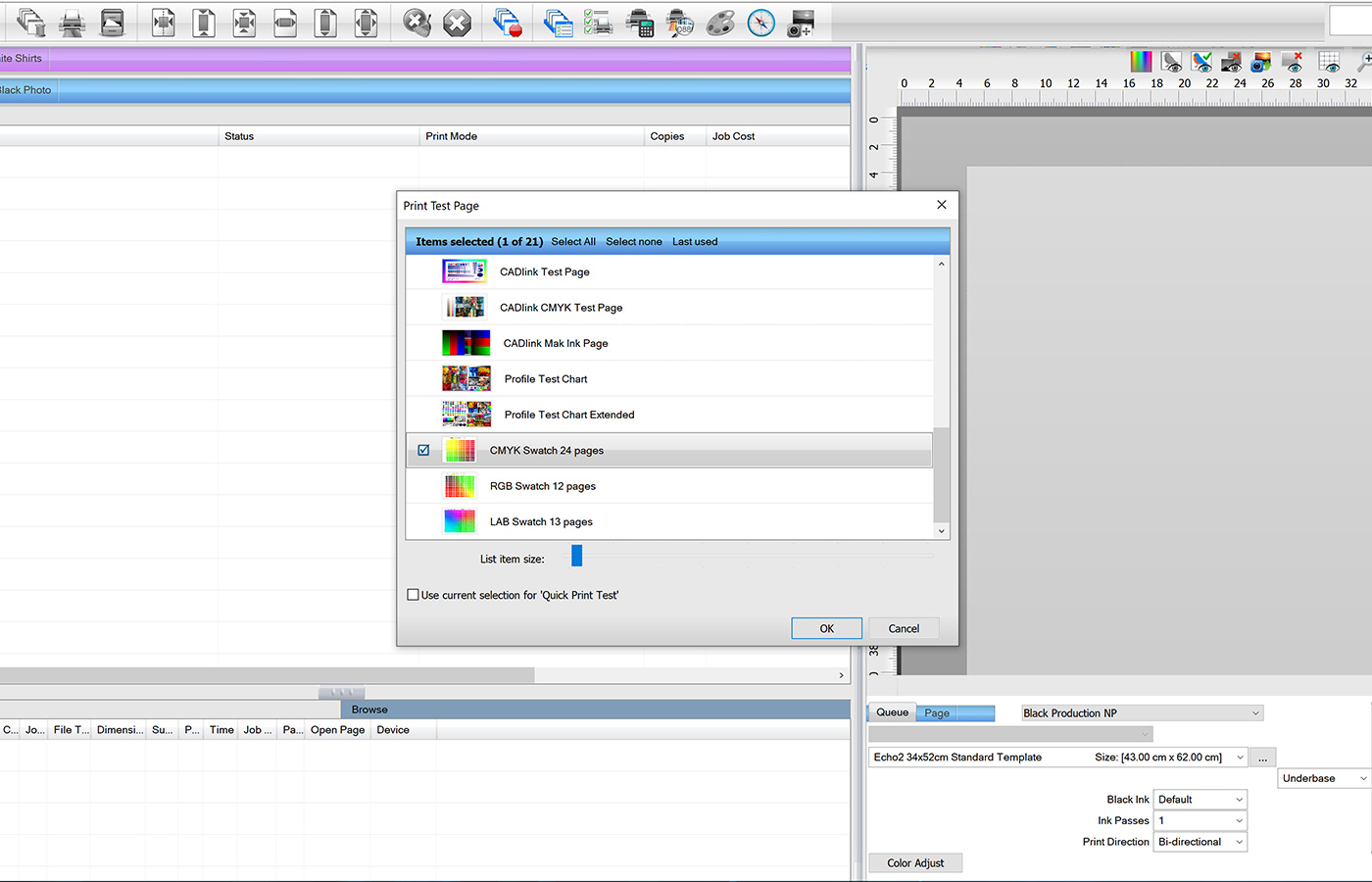 At the main toolbar, go to Devices and select Print Test Page. Scroll down at the new window and choose the CMYK Swatch 24 option. Click OK and wait until all the pages are loaded.
STEP 4
Depending on the color hues your spots that you want to change are closer to, select accordingly the chart and print it. For example, if you want to substitute a green color then select a chart that contains green color hues and its closer to the one that you want to print.
STEP 5
After printing the desired chart, optically check the printed colors and choose the best color match between the color on your monitor and the printed ones.
At each chart exact color values are displayed, indicating the percentages of the each ink (Cyan, Magenta, Yellow, Black and White in the case of dark-colored garments). Those values can be inserted on the Job Color Replacement tool.
Check here how to use the Job Color Replacement tool: How to use the Job Color Replacement tool in Digital Factory Apparel Polyprint Edition v10
An example of the process:
Following up the previous example with the green color, let’s say we have chosen from the chart SWATCH CMYK_p_8_8_of_24_3768.pdf the green hue at the bottom left corner. Right-click at the file and choose Job Color Replacement. The file will open in a new window where the choice of a color picker is available. Dragging the color picker at the desired color hue you will see the values of the CMYK ink that consist it – 38% of Cyan and 31.4% of Yellow. Importing those values at your file, the shade of the green will be the same.
Note: Keep in mind that the pantone system works at spot colors and not so much at gradients.


